


What Is Xcode? Learn Apple’s IDE for Building iOS & macOS Apps
With the rapid growth of Apple’s ecosystem, there was a strong need for a unified development environment to streamline the creation of iOS, macOS, watchOS, and tvOS applications. That need gave rise to Xcode, Apple’s official IDE, which has since become a core tool in the global tech community, especially among iOS app developers. In case your business is building iOS applications and searching for the right models and frameworks to scale effectively, this blog from Newwave Solutions is tailored to help you explore what is Xcode, its key features, its practical applications, and how to set up this IDE.
What is Xcode?
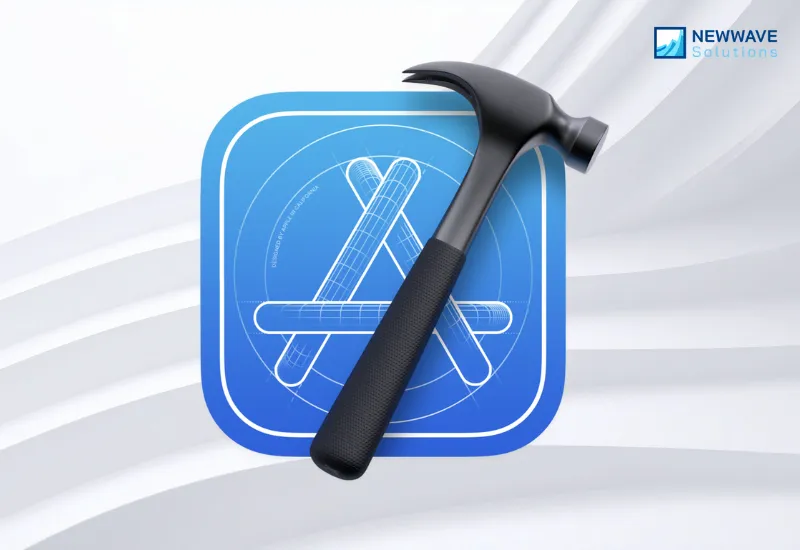
Xcode is Apple’s official Integrated Development Environment (IDE) designed for building applications across iOS, macOS, watchOS, and tvOS. It serves as a complete toolkit where developers can write code, design user interfaces, and test applications, all within one platform. Beyond being just a code editor, it provides compilers, debugging tools, simulators, and project management features, making it the backbone of iOS development.
For enterprises seeking to build reliable and scalable apps within the Apple ecosystem, understanding “what is an Xcode” is essential, as it represents the foundation for creating high-quality digital experiences.
Example: Popular brands like Airbnb leverage Xcode for Mac to streamline their iOS app development process, enabling designers and developers to collaborate seamlessly on UI and functionality. By using Xcode’s testing and debugging features, Airbnb ensures smooth user experiences, faster iteration cycles, and a consistently high-performing app on the App Store.
How does Xcode work?
Xcode works as a comprehensive development environment that combines coding, designing, compiling, and testing into one platform. Its modular structure allows developers to focus on writing efficient code while also providing built-in tools to design intuitive interfaces and test across multiple Apple devices.
Although there is no official Xcode for Windows, developers on macOS gain direct access to a streamlined workflow that tightly integrates with Apple’s platforms.
- Editor: Xcode supports programming in Swift, Objective-C, and C/C++, giving developers flexibility to use modern or legacy codebases.
- Interface Builder: The drag-and-drop interface design tool enables teams to create visually appealing apps without writing manual layout code.
- Simulator: Developers can test their apps on virtual iPhones, iPads, Apple Watches, and Apple TVs, ensuring compatibility across the Apple ecosystem.
- Debugger: Built-in debugging tools identify and fix errors quickly, helping to optimize performance and reduce downtime.
- Compiler & Build System: Xcode compiles source code into fully functional applications that can be deployed on physical devices or published to the App Store.
What Is Xcode Used For?
Xcode is used as the central hub for Apple software development, providing businesses and developers with the tools needed to design, build, test, and deploy applications at scale. Its all-in-one structure eliminates the need for separate tools, which makes it indispensable for enterprises creating apps for Apple’s platforms.
- Designing and building iOS/macOS apps: Developers can create feature-rich mobile and desktop apps tailored for Apple users.
- Writing code in Swift and Objective-C: Xcode’s editor ensures compatibility with Apple’s modern Swift language as well as legacy Objective-C.
- Debugging and testing apps in simulators: Developers can quickly identify issues and ensure cross-device functionality before releasing apps.
- Publishing apps to the App Store: Xcode provides direct integration with Apple’s distribution channels, streamlining the deployment process.
- Managing resources, assets, and provisioning profiles: Teams can organize their project resources and handle app signing to meet Apple’s security requirements.
Key Features of Xcode for iOS app development
Xcode offers a wide range of features that streamline the process of building iOS, macOS, watchOS, and tvOS applications. Below, we highlight the most important capabilities that directly benefit enterprises and development teams.
- SwiftUI Integration – Xcode enables businesses to build declarative user interfaces faster, allowing developers to design complex layouts with less code while improving consistency across applications.
- Playgrounds – Developers can instantly prototype and test Swift code in real time, making it easier for teams to experiment with logic or UI concepts before committing them to production.
- Performance Analyzer (Instruments) – Enterprises can detect performance bottlenecks and memory leaks, ensuring their apps run smoothly and meet user expectations at scale.
- App Distribution Tools – With built-in publishing pipelines, Xcode allows organizations to distribute apps directly to the App Store or deploy them internally through enterprise distribution.
- Version Control (GitHub, GitLab) – Seamless integration with version control systems enables development teams to collaborate efficiently and track changes across complex projects.
- Cross-Platform Testing – The simulator lets developers test applications on virtual iPhones, iPads, Apple Watches, and Apple TVs, ensuring that apps perform well across the Apple ecosystem.
Pros & Cons of Xcode for iOS app development
While Xcode is a powerful environment for Apple development, enterprises must weigh its strengths against its drawbacks before fully adopting it.
| Advantages | Limitations |
| Native Apple integration ensures seamless performance and compatibility across iOS, macOS, watchOS, and tvOS platforms. | macOS-only requirement restricts flexibility for businesses with cross-platform or Windows-based teams. |
| Free access with macOS reduces the entry cost for startups and enterprises beginning Apple development. | Steep learning curve presents challenges for developers with little experience in Apple’s ecosystem. |
| Complete all-in-one toolkit includes a code editor, UI builder, simulator, and debugger, eliminating the need for multiple tools. | Resource-heavy builds can slow down productivity for large projects or teams with limited hardware. |
| Strong support for Swift and Apple frameworks ensures developers can use the latest tools aligned with Apple’s ecosystem. | Limited usability outside Apple’s ecosystem reduces its value for businesses prioritizing cross-platform solutions. |
| Enterprise-grade debugging and profiling tools make it easier to build secure, high-performance applications. |
Verdict: Xcode is ideal for enterprises that are primarily focused on Apple platforms and want a native-first approach. However, cross-platform businesses may prefer combining Xcode with hybrid frameworks such as Flutter or React Native to reach a wider audience.
Which industries does Xcode support?
Several industries benefit the most from Xcode’s features, as it enables them to build secure, reliable, and engaging apps tailored to the Apple ecosystem. Here are the four industries that Xcode Toolkit can support the most:
1. Healthcare
Xcode is used to power HIPAA-compliant patient applications on iOS, allowing healthcare providers to deliver secure telehealth experiences and maintain compliance with data privacy regulations.
Example: Mayo Clinic uses iOS apps built with Xcode to improve patient engagement by enabling secure messaging, appointment booking, and access to personalized health data.
2. Banking & Fintech
Banks and fintech companies rely on Xcode to develop secure mobile banking applications that include biometric authentication and encryption for sensitive transactions.
Example: CitiBank’s iOS applications leverage Xcode to deliver secure mobile transactions, ensuring customer trust while maintaining compliance with global financial standards.
3. Retail & E-commerce
Xcode helps retailers and e-commerce brands build native shopping apps with features such as AR product previews and seamless in-app payments.
Example: IKEA’s “IKEA Place” app, developed using Xcode, enables customers to preview furniture in augmented reality, significantly boosting customer confidence in purchase decisions.
4. Media & Entertainment
Media companies use Xcode to develop streaming platforms and social media apps that require high-quality video delivery and interactive user interfaces.
Example: TikTok relies on Xcode to refine and update its iOS application, ensuring smooth performance, rich UI, and a reliable user experience for millions of users worldwide.
Getting Started with Xcode (Installation & Setup)
Many teams find Xcode overwhelming at first because the toolchain spans project templates, signing, simulators, Instruments, and release workflows; misconfigurations can cause build errors and delays. To reduce friction, follow this clear sequence – starting from Xcode download to internal or App Store distribution—so your team knows exactly how to set up Xcode and how to use Xcode in real projects.
Step 1: Install Xcode from the Mac App Store.
Open the Mac App Store, search for “Xcode,” and install the latest stable version to ensure compatibility with current iOS and macOS SDKs.
Step 2: Create a new project and select an app template.
Launch Xcode, choose “Create a new Xcode project,” and pick a template (e.g., iOS App with SwiftUI or UIKit) that matches your architecture and UI approach.
Step 3: Design the UI with Interface Builder or SwiftUI.
Use Interface Builder for drag-and-drop UIKit layouts or adopt SwiftUI for declarative views with live previews to accelerate design iteration.
Step 4: Write business logic in Swift or Objective-C.
Implement your data models, services, and view models in Swift (preferred) or Objective-C, and keep concerns separated for testability and maintainability.
Step 5: Test with the built-in simulator across multiple devices.
Run the app on simulated iPhones, iPads, Apple Watches, and Apple TVs, and vary OS versions, screen sizes, and orientations to validate behavior early.
Step 6: Debug performance with Instruments.
Profile CPU, memory, allocations, and energy usage using Instruments to identify bottlenecks, memory leaks, and dropped frames before production.
Step 7: Publish to the App Store or distribute internally.
Configure automatic signing, archive your build, and submit via the Organizer for App Store review, or use ad-hoc/enterprise distribution for internal releases; for CI/CD, connect to Xcode Cloud to automate builds, tests, and TestFlight delivery.
Xcode vs Other IDEs for iOS Development
Adopting the right IDE matters because Xcode is not the only option; Android Studio, Visual Studio, and Eclipse are all widely used and actively maintained across mobile and desktop ecosystems. The comparison below—touching on concrete, day-to-day capabilities including Xcode Cloud for CI/CD—will help you decide which tool aligns best for iOS Development Solutions with your business goals.
| Criteria | Xcode | Android Studio | Visual Studio | Eclipse | Winner (Why) |
| Platform Focus & Native SDK Access | Apple-only; first-class access to iOS, macOS, watchOS, and tvOS SDKs on day one of release. | Android-first with deep, timely access to Android SDK/Jetpack. | Broad Windows/.NET focus with good cross-language support (C#, C++). | General-purpose; relies on plugins for mobile/desktop stacks. | Xcode for Apple, Android Studio for Android (deepest native SDK access). |
| UI Design & Live Preview | Interface Builder & SwiftUI previews offer instant, device-accurate UI feedback. | Layout Editor provides constraint-based editing with real-device previews. | XAML/WinUI designers are solid but less mobile-centric. | Depends on third-party plugins; preview quality varies. | Xcode (fast, pixel-accurate Apple previews). |
| Performance Profiling & Diagnostics | Instruments delivers granular CPU, memory, energy, and animation tracing. | Profiler offers robust CPU/memory tools, excellent for Android tuning. | Diagnostic Tools integrate with .NET profilers and Performance Explorer. | Requires external profilers; setup is less cohesive. | Xcode and Android Studio (deep, integrated profilers). |
| CI/CD Integration | Xcode Cloud provides built-in hosted CI/CD with signing, tests, and TestFlight. | Integrates smoothly with Firebase Test Lab and popular CI services. | Strong Azure DevOps/GitHub Actions story; rich Windows pipelines. | Requires manual CI wiring; flexibility at the cost of complexity. | Xcode for Apple pipelines (Xcode Cloud), Visual Studio for Azure/. . .NET. |
| Simulator/Emulator Fidelity | iPhone/iPad/Watch/TV simulators closely mirror Apple devices and APIs. | Android Emulator supports broad device profiles and sensors. | Emulators depend on the target platform; strongest on Windows. | Relies on external emulators; consistency varies. | Xcode and Android Studio (most accurate for their platforms). |
| Code Signing & Provisioning | Integrated certificates, profiles, and automatic signing reduce release friction. | Keystore management is straightforward but more manual than Apple’s auto-signing. | Code signing is strong for Windows; mobile requires extra tooling. | Largely manual; depends on plugins. | Xcode (best-in-class Apple signing workflow). |
| Dependency & Package Management | Swift Package Manager is first-party and tightly integrated with Xcode projects. | Gradle/Maven ecosystems are mature and highly configurable. | NuGet is extensive for .NET; management is seamless. | Maven/Gradle via plugins; setup can be verbose. | Android Studio/Gradle for flexibility, Xcode/SPM for Apple simplicity. |
Verdict: Xcode dominates other Apple development models with unmatched UI previews, signing, simulators, and Xcode Cloud pipelines. Android Studio is the clear leader for Android work, while Visual Studio shines for .NET software development and Windows ecosystems. Enterprises targeting multiple platforms often pair Xcode with Android Studio (and sometimes a hybrid framework) to balance native depth with delivery speed.
Best Practices for Enterprises Using Xcode
- Train teams in both Swift and Objective-C for legacy support. Ensuring your developers are skilled in both languages allows smoother migration from older Objective-C projects while building modern Swift-based apps.
- Leverage SwiftUI for faster UI prototyping. SwiftUI helps create declarative and responsive UIs quickly, making it easier to iterate and test design concepts in enterprise projects.
- Use Instruments regularly for performance tuning. Profiling your applications with Instruments helps detect performance bottlenecks, memory leaks, and energy issues early in the development cycle.
- Adopt Git/GitHub integration for collaborative projects. Version control in Xcode ensures enterprise teams can collaborate effectively, track changes, and maintain code quality.
- Conduct simulator and on-device testing before deployment. Running apps across different simulated and real Apple devices validates performance, UI consistency, and compliance with enterprise requirements.
- Partner with professional iOS app developers for enterprise-grade projects. Collaborating with experienced teams guarantees secure, scalable, and user-friendly apps tailored to business needs.
FAQs
1. What is Xcode on Mac?
Xcode on Mac is Apple’s official Integrated Development Environment (IDE) for creating applications across iOS, macOS, watchOS, and tvOS. It comes preloaded with all the tools needed to write, test, and publish Apple apps.
2. Is Xcode free to use?
Yes, Xcode is free to download and use from the Mac App Store. However, publishing apps to the App Store requires an Apple Developer Program subscription.
3. Can Xcode run on Windows?
Xcode is designed exclusively for macOS and cannot run natively on Windows. Developers using Windows must rely on macOS virtualization or cloud-based macOS services to access Xcode.
4. How to update Xcode?
You can update Xcode directly through the Mac App Store by checking the “Updates” tab. It is recommended to always use the latest stable version to ensure compatibility with Apple’s SDKs.
5. What programming languages does Xcode support?
Xcode supports Swift, Objective-C, C, and C++. This makes it versatile for both modern and legacy Apple application development.
6. How is Xcode different from Swift Playgrounds?
Xcode is a full-featured IDE for professional app development, while Swift Playgrounds is an educational tool for learning Swift interactively. Enterprises use Xcode, while Swift Playgrounds is mainly for beginners and students.
7. Can enterprises use Xcode for large-scale apps?
Yes, Xcode is enterprise-ready and supports large-scale app development with advanced debugging, performance analysis, and collaboration tools. Many Fortune 500 companies build their iOS apps using Xcode.
8. What is the difference between Xcode and Android Studio?
Xcode is optimized for Apple platforms, offering native SDK access, SwiftUI, and tools like Instruments. Android Studio, on the other hand, is designed for Android development and provides deep integration with Java/Kotlin and Android SDKs.
Conclusion
In short, what is Xcode can be understood as Apple’s powerful integrated development environment that drives the design, coding, testing, and deployment of apps across iOS, macOS, watchOS, and tvOS.
However, without the right technical expertise, businesses often struggle to fully leverage Xcode for building complete, high-performing iOS applications. That’s why your businesses or companies should consider the option to hire iOS developers from Newwave Solutions, where experienced teams ensure smooth front-end and back-end development, effective project management, and scalable results.
To Quang Duy is the CEO of Newwave Solutions, a leading Vietnamese software company. He is recognized as a standout technology consultant. Connect with him on LinkedIn and Twitter.



Read More Guides

Get stories in your inbox twice a month.
Let’s Connect
Let us know what you need, and out professionals will collaborate with you to find a solution that enables growth.
Leave a Reply